Sources
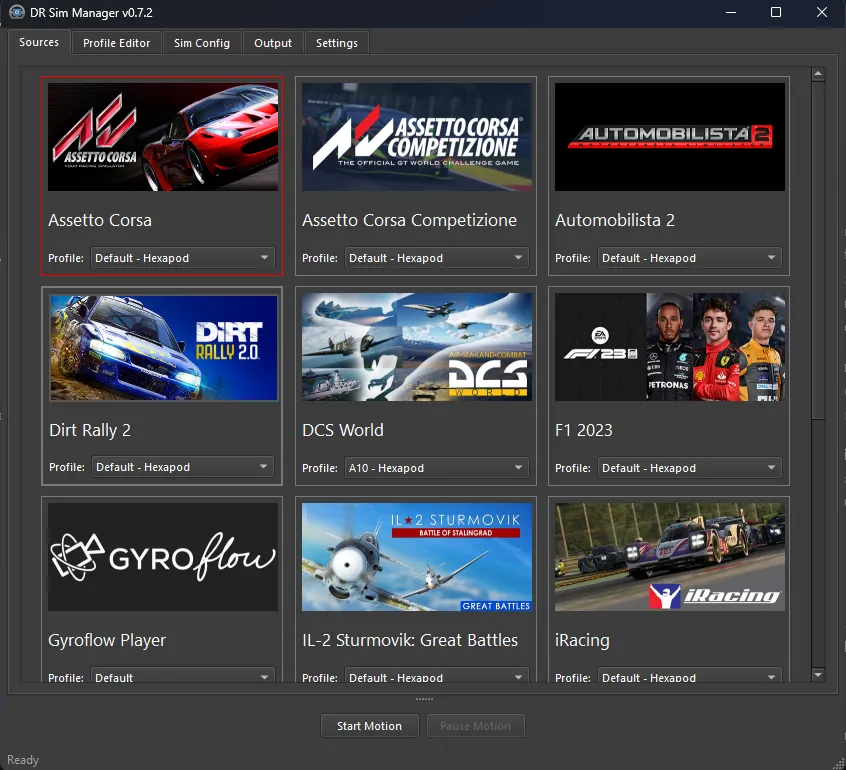
In the Source tab, you can select the game or source from which DR Sim Manager will receive telemetry data for the motion simulator. Follow these steps to configure your source:
- Select Your Game or Source
Click on the game or source you want to use. Then, select the desired profile from the dropdown menu. - Start Motion
Once a game is selected, the Start Motion button becomes enabled. Click Start Motion to initiate the following actions:- Connection Attempt: DR Sim Manager will attempt to connect to the selected game or source to receive real-time telemetry data.
- Data Transmission: Motion data will begin transmitting to the configured outputs, which may include motion controllers, virtual trackers, and other supported devices.
How DR Sim Manager Connects to Games
Section titled “How DR Sim Manager Connects to Games”DR Sim Manager uses several different methods to receive telemetry data from games. Understanding these connection types can help with troubleshooting.
Shared Memory (No Setup Required)
Section titled “Shared Memory (No Setup Required)”Some games write telemetry data to a region of memory that DR Sim Manager can read directly. These games require no configuration — just launch the game and select it in DR Sim Manager. Examples: Assetto Corsa, iRacing, RaceRoom.
Shared Memory with Plugin (Plugin Install Required)
Section titled “Shared Memory with Plugin (Plugin Install Required)”Some games need a small plugin file copied into the game’s folder before telemetry appears in shared memory. DR Sim Manager includes these plugins and many can be installed automatically via the Settings icon next to the source. Examples: Euro Truck Simulator 2, rFactor 2, Le Mans Ultimate.
UDP (In-Game Setup Required)
Section titled “UDP (In-Game Setup Required)”Some games send telemetry over a network connection (UDP). You typically need to enable this in the game’s settings and set the correct IP address and port. DR Sim Manager listens for the data on the matching port. Examples: F1 25, BeamNG.drive, DCS World.
SimConnect (No Setup Required)
Section titled “SimConnect (No Setup Required)”Microsoft Flight Simulator titles use their SimConnect interface. DR Sim Manager connects through this automatically — no configuration is needed. Examples: MS Flight Simulator 2020, MS Flight Simulator 2024.
HTTP (No Setup Required)
Section titled “HTTP (No Setup Required)”Some games expose telemetry through a local web server. DR Sim Manager reads data from this automatically. Example: War Thunder.
Automatic Plugin Installation
Section titled “Automatic Plugin Installation”Many games that require a plugin offer an automatic installer inside DR Sim Manager:
- Select the game as your source.
- Click the Settings icon (⚙) next to the source name.
- Click the Install Plugin or Configure Telemetry button.
- The plugin files and configuration are set up automatically.
Games that support automatic installation include: DCS World, Le Mans Ultimate, rFactor 2, Dirt Rally 2.0, EA SPORTS WRC, Falcon BMS, Farming Simulator 2025, and Wreckfest 2.
Quick Reference Table
Section titled “Quick Reference Table”| Game | Connection | Setup Required | Telemetry Quality |
|---|---|---|---|
| Assetto Corsa | Shared Memory | None | ★★★★★ |
| Assetto Corsa Competizione | Shared Memory | None | ★★★★★ |
| Assetto Corsa EVO | Shared Memory | None | ★★★★☆ |
| Assetto Corsa Rally | Shared Memory | None | ★★★★★ |
| Automobilista 2 | Shared Memory | In-game setting | ★★★★★ |
| BeamNG.drive | UDP | In-game setting | ★★★★☆ |
| DCS World | UDP (Plugin) | Plugin install | ★★★★★ |
| Dirt Rally 2.0 | UDP | Plugin + config | ★★★★☆ |
| EA SPORTS WRC | UDP | Config file | ★★★★★ |
| Euro Truck Simulator 2 | Shared Memory (Plugin) | Plugin install | ★★★★★ |
| F1 25 | UDP | In-game setting | ★★★★★ |
| iRacing | Shared Memory | None | ★★★★★ |
| Le Mans Ultimate | Shared Memory (Plugin) | Plugin install | ★★★★★ |
| MS Flight Simulator 2024 | SimConnect | None | ★★★★★ |
| rFactor 2 | Shared Memory (Plugin) | Plugin install | ★★★★★ |
| RaceRoom | Shared Memory | None | ★★★★★ |
| War Thunder | HTTP | None | ★★★☆☆ |
| XWVM | UDP | In-game setting | ★★★★☆ |
| X-Plane 12 | Shared Memory (Plugin) | Plugin install | ★★★★☆ |
See individual game pages for all other supported titles.
Currently Supported Games
Section titled “Currently Supported Games”DR Sim Manager supports telemetry integration with the following games and sources:
- American Truck Simulator — Plugin install required
- Assetto Corsa — No setup required
- Assetto Corsa Competizione — No setup required
- Assetto Corsa EVO — No setup required
- Assetto Corsa Rally — No setup required
- Automobilista 2 — In-game setting required
- BeamNG.drive — In-game setting required
- Condor 2 — Config file edit required
- Condor 3 — Config file edit required
- DCS World — Plugin install required (auto-install available)
- Dirt Rally 2.0 — Plugin + config required (auto-install available)
- EA SPORTS WRC — Config file required (auto-install available)
- Elite Dangerous: Odyssey — XML file required
- Euro Truck Simulator 2 — Plugin install required
- F1 2023 — In-game setting required
- F1 2024 — In-game setting required
- F1 2025 — In-game setting required
- Falcon BMS — Config edit required (auto-install available)
- Farming Simulator 2025 — Mod install required (auto-install available)
- Forza Horizon 5 — In-game setting required
- Forza Motorsport — In-game setting required
- Gyroflow Player — Load video + JSON file
- IL-2 Sturmovik: Great Battles — Config file edit required
- iRacing — No setup required
- Kayak VR: Mirage — In-game setting required
- Le Mans Ultimate — Plugin install required (auto-install available)
- MS Flight Simulator 2020 — No setup required
- MS Flight Simulator 2024 — No setup required
- No Limits 2 — Launch options required
- Prepar3D — No setup required
- Project CARS 2 — In-game setting required
- RaceRoom Racing Experience — No setup required
- rFactor 2 — Plugin install required (auto-install available)
- Richard Burns Rally — RSF Launcher setting required
- SpaceMonkey — SpaceMonkey app required
- STAR WARS: Squadrons — Symlink workaround required
- Test Drive Unlimited Solar Crown — Config file edit required
- War Thunder — No setup required
- WRC Generations — Config file edit required
- Wreckfest 2 — Config edit required (auto-install available)
- X-Plane 11 — Plugin install required
- X-Plane 12 — Plugin install required