DR Sim Manager Won't Start Anymore
If DR Sim Manager won’t launch, crashes on startup, or shows an error dialog before opening, this guide covers the most common causes and fixes.
Quick Fixes (Try These First)
Section titled “Quick Fixes (Try These First)”Reset the UI Configuration
Section titled “Reset the UI Configuration”The most common cause of startup failures is a corrupted UI configuration file. To reset it:
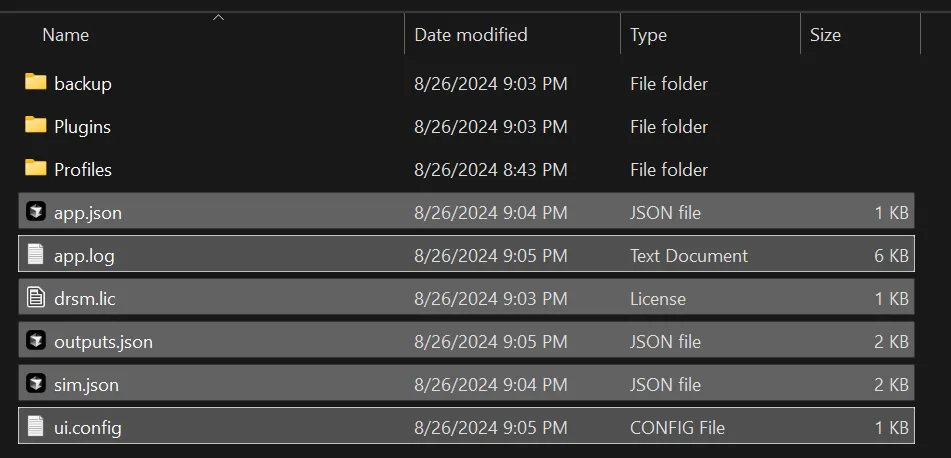
- Navigate to
C:\Users\<UserName>\AppData\Local\DRSimManager. - Delete the
ui.configfile. - Try to relaunch DR Sim Manager.
This resets window positions, dock layouts, and UI state without affecting your profiles, outputs, or license.
Reset All Configuration
Section titled “Reset All Configuration”If deleting ui.config alone doesn’t help, delete all configuration files to start fresh:
- Navigate to
C:\Users\<UserName>\AppData\Local\DRSimManager. - Delete the following files:
app.json,sim.json,outputs.json, andui.config. - Try to relaunch DR Sim Manager.
Your Profiles and license are preserved — only application settings are reset to defaults.
Common Causes
Section titled “Common Causes”Corrupted Configuration Files
Section titled “Corrupted Configuration Files”If a configuration file (app.json, sim.json, outputs.json, or ui.config) becomes corrupted — for example, due to a power failure during saving or a disk error — DR Sim Manager may fail to start. Symptoms include:
- The application flashes briefly and closes
- An error dialog mentioning configuration or data loading
- The application hangs on the splash screen
Fix: Delete the corrupted configuration files as described above.
Antivirus or Windows Defender Blocking
Section titled “Antivirus or Windows Defender Blocking”Some antivirus software may flag DR Sim Manager as suspicious, particularly after an update. This can prevent the application from starting or cause it to crash immediately.
How to check:
- Open Windows Security → Virus & threat protection → Protection history.
- Look for any recent entries related to DR Sim Manager or DRSimManager.exe.
- If you find a block, click on it and select Allow on device.
How to add an exclusion:
- Open Windows Security → Virus & threat protection → Manage settings (under Virus & threat protection settings).
- Scroll down to Exclusions and click Add or remove exclusions.
- Click Add an exclusion → Folder.
- Add the DR Sim Manager installation folder (default:
C:\Program Files\DR Sim Manager\). - Optionally, also add the data folder:
C:\Users\<UserName>\AppData\Local\DRSimManager\.
Missing System Files or DLLs
Section titled “Missing System Files or DLLs”If Windows system files are damaged or missing, DR Sim Manager may fail to start with an error about missing DLLs or components.
Common missing components:
- Visual C++ Redistributable — DR Sim Manager requires the latest Visual C++ Redistributable. Download and install it from Microsoft’s website.
- Windows Updates — Ensure your Windows 11 installation is fully up to date.
How to fix:
- Install the latest Microsoft Visual C++ Redistributable.
- Run Windows Update and install all available updates.
- Try relaunching DR Sim Manager.
Corrupted License Data
Section titled “Corrupted License Data”In rare cases, license data corruption can prevent startup. Symptoms include the activation dialog failing to appear or the application crashing during license verification.
How to fix:
- Navigate to
C:\Users\<UserName>\AppData\Local\DRSimManager. - Delete the license file (
drsm.lic) if it exists. - Relaunch DR Sim Manager — the activation dialog will appear.
- Re-enter your license key and email to reactivate.
Graphics Driver Issues
Section titled “Graphics Driver Issues”DR Sim Manager uses hardware-accelerated rendering for the 3D Sim Visualizer. Outdated or corrupted graphics drivers can cause crashes on startup.
How to fix:
- Update your graphics drivers to the latest version from your GPU manufacturer (NVIDIA, AMD, or Intel).
- If updating drivers doesn’t help, try launching DR Sim Manager with the
-no3dcommand line argument (if available) to disable 3D rendering.
How to Check Logs
Section titled “How to Check Logs”DR Sim Manager keeps a log file that can help diagnose startup issues:
- Navigate to
C:\Users\<UserName>\AppData\Local\DRSimManager. - Look for log files named
app_YYYY-MM-DD.log(e.g.,app_2026-04-19.log). - Open the most recent log file in a text editor.
- Look for ERROR or CRITICAL entries near the end of the file — these indicate what went wrong.
- If you’re contacting support, include the log file in your message.
Common Log Error Messages
Section titled “Common Log Error Messages”| Log Message | Meaning | Solution |
|---|---|---|
| “Error” + “configuration” | A config file is corrupted or has invalid data | Delete the affected config file and relaunch |
| “Component Failure” + “failed to load” | A required component couldn’t initialize | Check for missing DLLs or system updates |
| “Permission Error” | The application can’t access a required file | Check antivirus exclusions; don’t run from a restricted folder |
| “A critical system error occurred” | A low-level crash (access violation, segfault) | Update drivers, check hardware connections |
| “An application error occurred” | An unexpected error during startup | Check the full log for details; try resetting config |
Clean Reinstall Procedure
Section titled “Clean Reinstall Procedure”If nothing else works, perform a clean reinstall:
- Uninstall DR Sim Manager from Windows Settings → Apps → Installed apps.
- Back up your profiles — Copy the
Profilesfolder fromC:\Users\<UserName>\AppData\Local\DRSimManager\Profilesto a safe location. - Delete the data folder — Delete the entire
C:\Users\<UserName>\AppData\Local\DRSimManagerfolder. - Download the latest installer from GitHub Releases.
- Install DR Sim Manager.
- Restore your profiles — Copy your backed-up
Profilesfolder back toC:\Users\<UserName>\AppData\Local\DRSimManager\Profiles. - Reactivate your license — Enter your license key and email when prompted.
- Reconfigure — Set up your sim config, outputs, and settings.
Application Error Dialogs
Section titled “Application Error Dialogs”If DR Sim Manager shows an error dialog on startup, the message provides clues about the issue:
- “A critical system error occurred” — This indicates a serious system-level error such as a hardware disconnection, memory access violation, or graphics driver issue. Try restarting, checking hardware connections, and updating drivers.
- “An application error occurred” — This is a non-critical error. Try restarting the application, checking configuration settings, and ensuring all required files are present.
In both cases, the log file will contain more detailed information. See How to Check Logs above.
Still Not Working?
Section titled “Still Not Working?”- Share your log file — The log file is the most important piece of information for diagnosing startup issues.
- Contact support — Email info@departedreality.com with your log file and a description of when the issue started.
- Join Discord — The Departed Reality Discord community can help troubleshoot.