DOF Reality Simulators
DR Sim Manager includes built-in preset configurations for DOF Reality motion simulators. These presets load all the correct rig dimensions, actuator settings, and axis limits automatically — no manual measurement required.
Supported Models
Section titled “Supported Models”- DOF Reality P6 — 6-DoF rotary hexapod platform
More DOF Reality models may be supported in future updates.
P6/P6R
Section titled “P6/P6R”Sim Config Setup
Section titled “Sim Config Setup”- In the Sim Config tab, click the “+” tab to add a new sim type.
- Select Rotary Hexapod (6-DoF) from the dropdown.
- Select DOF Reality P6 from the Preset dropdown.
- All dimensions, crank angles, rod lengths, motor directions, and axis limits are loaded automatically.
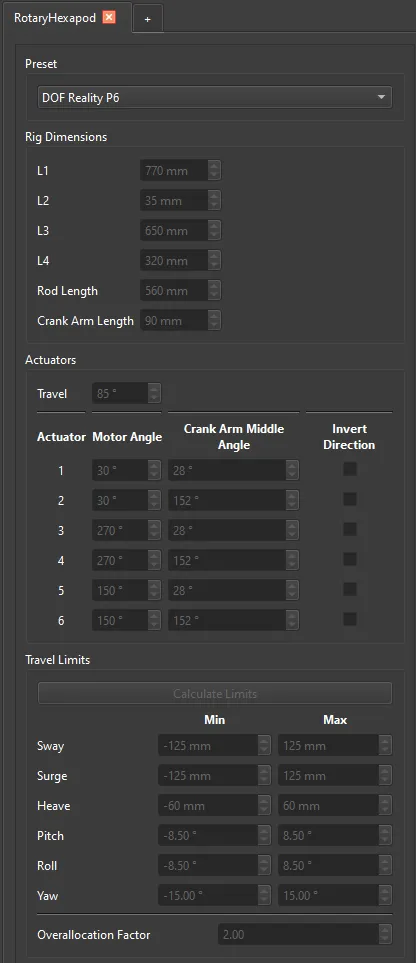
Rotary Hexapod UI with DOF Reality P6 Preset
Output Setup
Section titled “Output Setup”The P6/P6R/H6 simulators have two SMC3 controllers, each with its own USB connection to the computer. Each controller appears as a separate COM port in DR Sim Manager.
Controller 1:
- In the Output tab, click the “+” tab to add a new output.
- Select SMC3 Serial Output from the list.
- Name the output Controller 1.
- Set the COM Port that corresponds to Controller 1.
- Set port mapping following the image below.
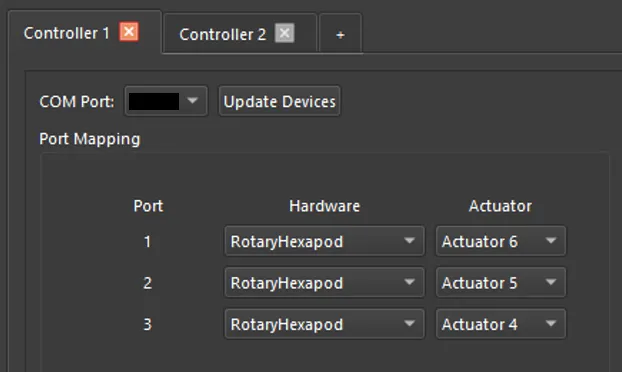
Controller 1 Output Settings
Controller 2:
- Repeat steps 1–5 for Controller 2, selecting the second COM port.
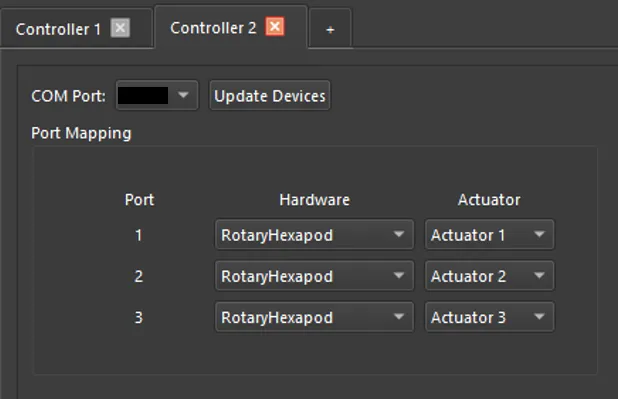
Controller 2 Output Settings
Common Issues
Section titled “Common Issues”- Roll or other axes inverted — Swap the COM port assignments between Controller 1 and Controller 2. The controllers are physically interchangeable, so swapping USB connections (or COM port assignments in DRSM) resolves most inversion issues.
- Only 3 actuators respond — Ensure both controllers are connected and both COM ports are correctly assigned. Each controller drives 3 of the 6 actuators.
- Jerky or inconsistent motion — Verify you are using the DOF Reality P6 preset and have not modified the default values. Incorrect dimensions on a rotary hexapod cause severe motion artifacts.
- COM port not appearing — Install the latest drivers for the SMC3 controllers. Check Windows Device Manager to confirm both controllers are detected.